
Quick answer
How do I set up a local SEO proxy in Chrome or Firefox?
Connect LocalSERP Proxy, a local SEO proxy, through Firefox’s manual network settings or a FoxyProxy HTTP entry in a dedicated Chrome profile. Enter the dashboard hostname, HTTP port 7777 and generated credentials, then verify the exit IP. Updated October 2026; keep your normal browsing profile separate from the local check.
Your first useful result
| Planning estimate | 15–20 minutes to configure and verify one browser route |
|---|---|
| You will have | A working HTTP browser connection with verified location evidence |
| Have ready | Exported residential username/password and your chosen browser |
| Estimate basis | Editorial planning guidance for the stated scope; excludes account funding, unavailable exits and external waiting. |
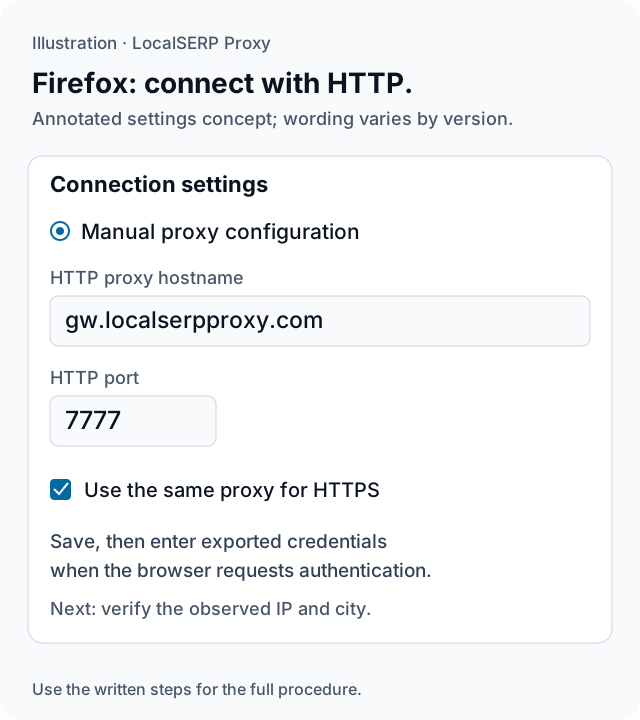
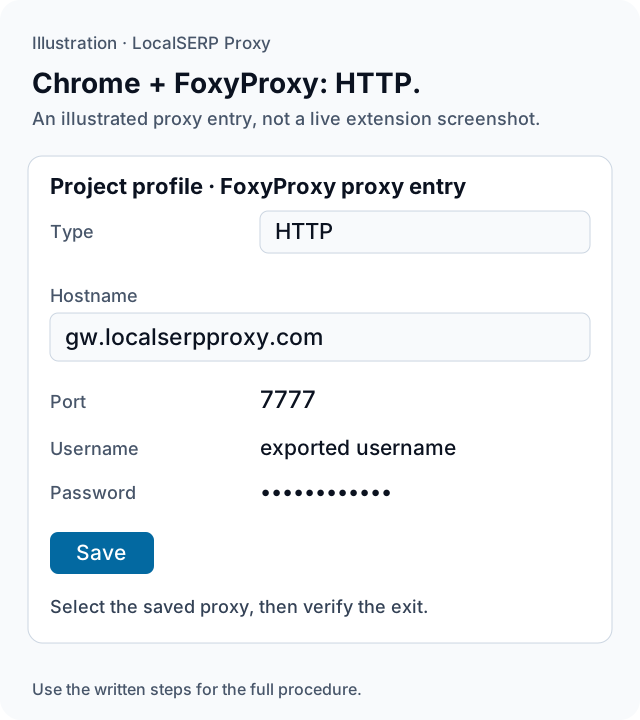
The Firefox and Chrome/FoxyProxy drawings are annotated configuration concepts. They show the HTTP gateway route and redacted credentials, rather than screenshots of an installed version.
Firefox: five steps to a verified connection
Work through one case and save the record before expanding to more markets.
Create a project profile
Open
about:profilesin Firefox, choose Create a New Profile and follow the profile wizard. Launch that profile in a new browser window. Keep the public test signed out and name the profile for the project so you can identify its connection and stored website state later.Open the connection settings for your version
Open Firefox Settings and find Network Settings or Proxy settings. Mozilla documents General with Settings/Configure proxy in some versions, and Privacy and security with Connection and software security → Advanced settings → Proxy settings in others. Open the Connection Settings dialog shown by your installed version.
Enter the HTTP gateway
Select Manual proxy configuration. Set the HTTP proxy hostname to
gw.localserpproxy.comand its port to7777. Apply the option to use the same proxy for HTTPS, then save. This is the HTTP CONNECT route for HTTPS pages; the SOCKS5 endpoint is a separate client configuration.Authenticate with the exported settings
Open a permitted IP-check page in the project window. When Firefox requests proxy authentication, enter the generator’s exported username and password. Copy them exactly, including the requested location and session settings in the username. Keep the complete credential out of the evidence screenshot.
Verify, inspect, then restore
Record the public exit IP, an independent location estimate and the target’s displayed context. Once the case matches the intended scope, run the planned page check. Afterwards, return the project profile to its prior connection setting or No proxy and verify ordinary browsing before ending the session.
Chrome: use the HTTP route with FoxyProxy
Choose this alternative if you prefer a switchable proxy entry inside the project’s Chrome profile. The official extension help is the reference for your installed version.
Create the Chrome project profile
Open Chrome’s Profile menu and choose Add Chrome profile. Give it a project name and keep personal accounts separate. Install the approved FoxyProxy extension from the browser’s extension store in that profile, following your organization’s extension policy.
Add one proxy definition
Open FoxyProxy Options, go to its Proxies area and use Add. Give the entry a clear project title. Choose HTTP as the type and enter
gw.localserpproxy.comwith port7777, plus the exported username and password in their respective fields.Save and select the entry
Save the definition, then select that individual proxy from the toolbar popup. The extension’s current help distinguishes an individual proxy from pattern-based routing. Use the individual entry for this initial controlled check, then confirm the observed exit before relying on the selection label.
Capture the location record
Open your permitted IP checker, then a location lookup and the target page. Record the three location fields described below. After the task, choose Disable in FoxyProxy to return control to the browser, and confirm the project profile has returned to the connection state you expect.
Save this evidence
| Record | What belongs in it |
|---|---|
| Requested | Generator location and redacted session settings |
| Observed IP | Public exit returned by the checker |
| Location estimate | Lookup provider and its area label |
| Target context | The area or source the destination displays |
Save a repeatable setup
Keep the protocol, endpoint, browser version and profile name with the project method. For the next city, export new settings and repeat the location verification rather than treating a familiar profile name as proof of the connection. HTTP on port 7777 and SOCKS5 on port 7778 are distinct endpoints. In Chrome, use the documented HTTP route for username/password authentication; Chromium does not support SOCKS5 authentication. The steps above are reviewed against the primary references dated 15 October 2026.
Troubleshoot the first attempt
Use the symptom to choose the next controlled check. The cause column lists possibilities to investigate.
| Symptom | Possible cause | Next action |
|---|---|---|
| The browser repeatedly asks for credentials | The exported values or endpoint may differ | Copy the generator values and confirm HTTP/7777. |
| Chrome SOCKS5 authentication fails | Chrome does not support that authentication method | Use the HTTP entry with the exported credentials. |
| The old public IP remains | Another profile or proxy mode may be active | Select the project entry and verify on a new check. |
| The browser stops loading after the task | The project proxy may still be selected | Restore the previous mode or No proxy, then test normally. |
What should the browser setup test consume?
Use the entry plan to validate authentication, exit location and one short target journey before wider browsing. It costs $1.50 for 1 GB from a balance with a $25 minimum top-up. Follow the location verification guide before treating a successful page load as evidence of city targeting.
Questions about browser connection setup
Which host and port should I enter for an HTTP browser connection?
Use the gateway and credentials exported by the dashboard. The documented HTTP and HTTPS CONNECT endpoint is gw.localserpproxy.com on port 7777. Enter the supplied username and password exactly. Confirm the observed exit on a permitted IP-check service before opening the page whose local behavior you intend to review.
Can Chrome use username/password authentication with SOCKS5?
Chromium documents that Chrome does not support SOCKS5 authentication. For the browser workflow shown here, choose HTTP in FoxyProxy and use the HTTP gateway on port 7777 with the exported credentials. HTTPS target pages use CONNECT through that HTTP proxy. Follow the client’s documented capabilities when choosing another protocol.
Should I put the password in a screenshot for support?
Keep the password, API keys and account number out of screenshots and shared notes. Show the protocol, endpoint, requested location and redacted username shape instead. Record the observed error and time so support can identify the stage that failed. If a secret was exposed, change the affected credentials before resuming the check.
Why use a dedicated profile instead of changing my everyday browser?
A project profile makes its account state, location permission, language and saved branch choices easier to document. Keep personal sessions outside that setup and record which settings the test requires. The profile still needs a verified proxy connection; its name alone does not establish that traffic follows the intended network path.
Does loading an IP-check page verify the requested city?
An echo page that returns an address establishes the observed public IP for that request. Use a separate location estimate and the target’s displayed context to assess the city. Record all three fields, because a successful connection can still be associated with a different label or interpreted differently by the destination.
How do I restore the browser after the check?
Disable the proxy in the dedicated profile using the same connection settings used for setup, then confirm ordinary browsing works. Save only the non-sensitive test record and remove copied secrets from temporary notes. Before the next case, apply its required browser-state reset instead of assuming that disabling the proxy cleared website storage.
Primary references reviewed 15 October 2026 (6)
- Connection settings in Firefox — Mozilla (2026-10-15)
- Geolocation API — Mozilla MDN (2026-10-15)
- Create, remove or switch Firefox profiles — Mozilla (2026-10-15)
- Manage Chrome with multiple profiles — Google Chrome (2026-10-15)
- FoxyProxy current browser-extension help foxyproxy.github.io/browser-extension/src/content/help.html — FoxyProxy (2026-10-15)
- Proxy support in Chrome — Chromium (2026-10-15)